

Get started
TODO for AI is a shared board where your team and AI agents work the same TODOs. You write what needs doing, an agent does it on your machines and in your tools, and everyone sees the result.
No signup is needed to try it. Sign-in (email code or Google) is only asked for when you want to keep your work.
1. Add your website
Open todofor.ai, type your company website and click Add my website. The agent reads the site and writes a business context page: what you sell, who buys, how you sound. Every agent in the project reads this page before it works.
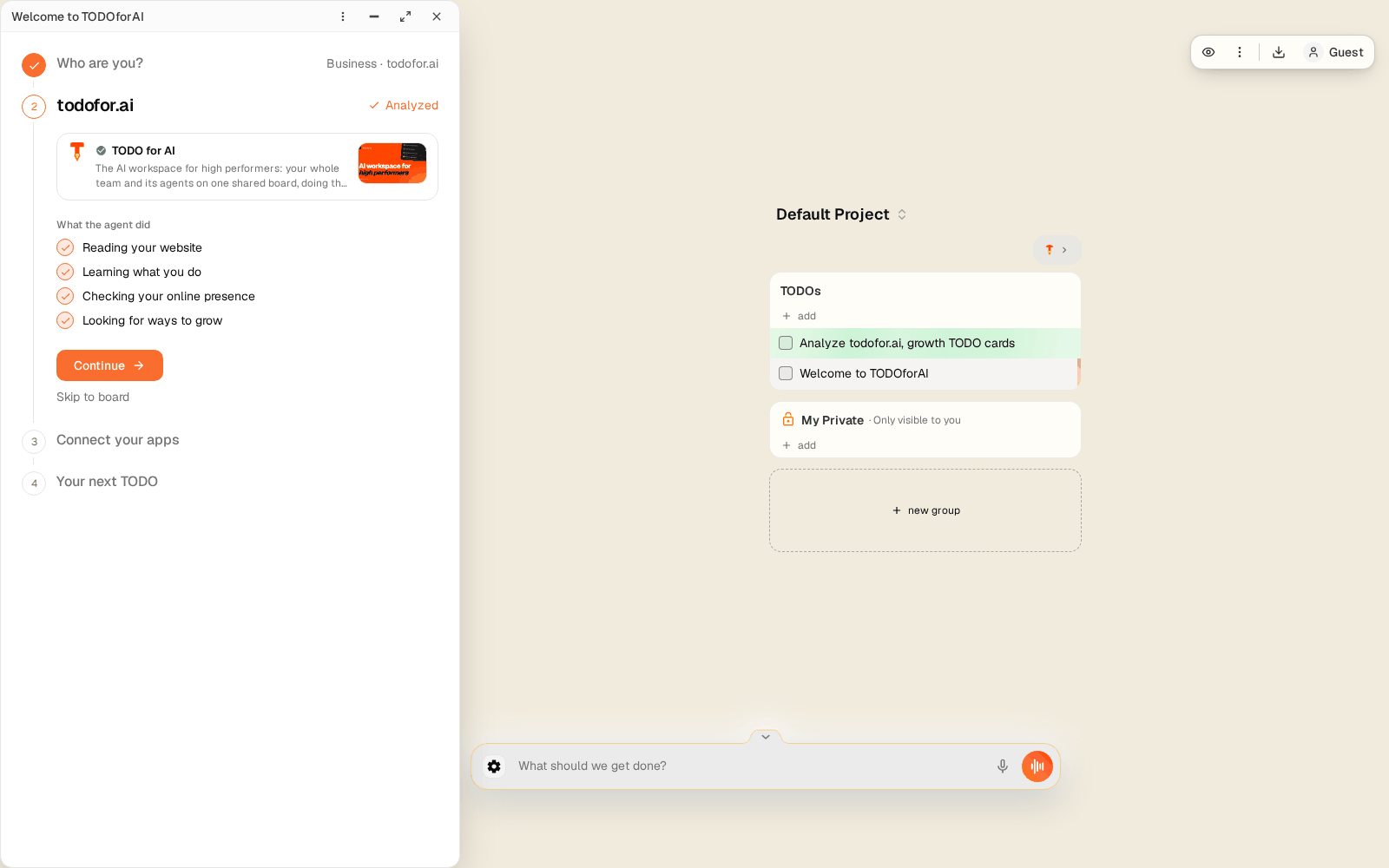
Skip it if you only want a personal board. You can add or redo it later in Settings → View → Restart setup.
2. Review the proposals
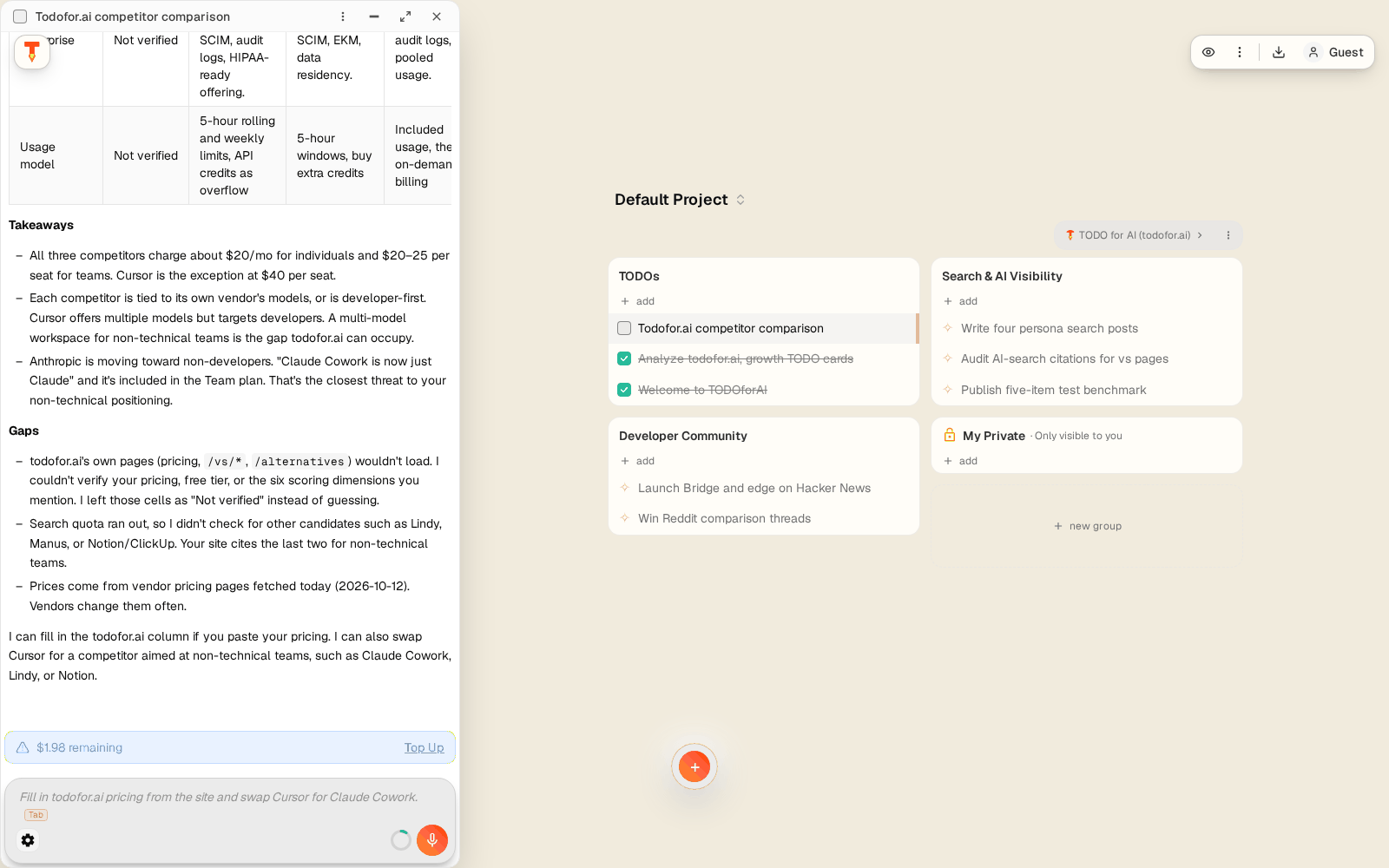
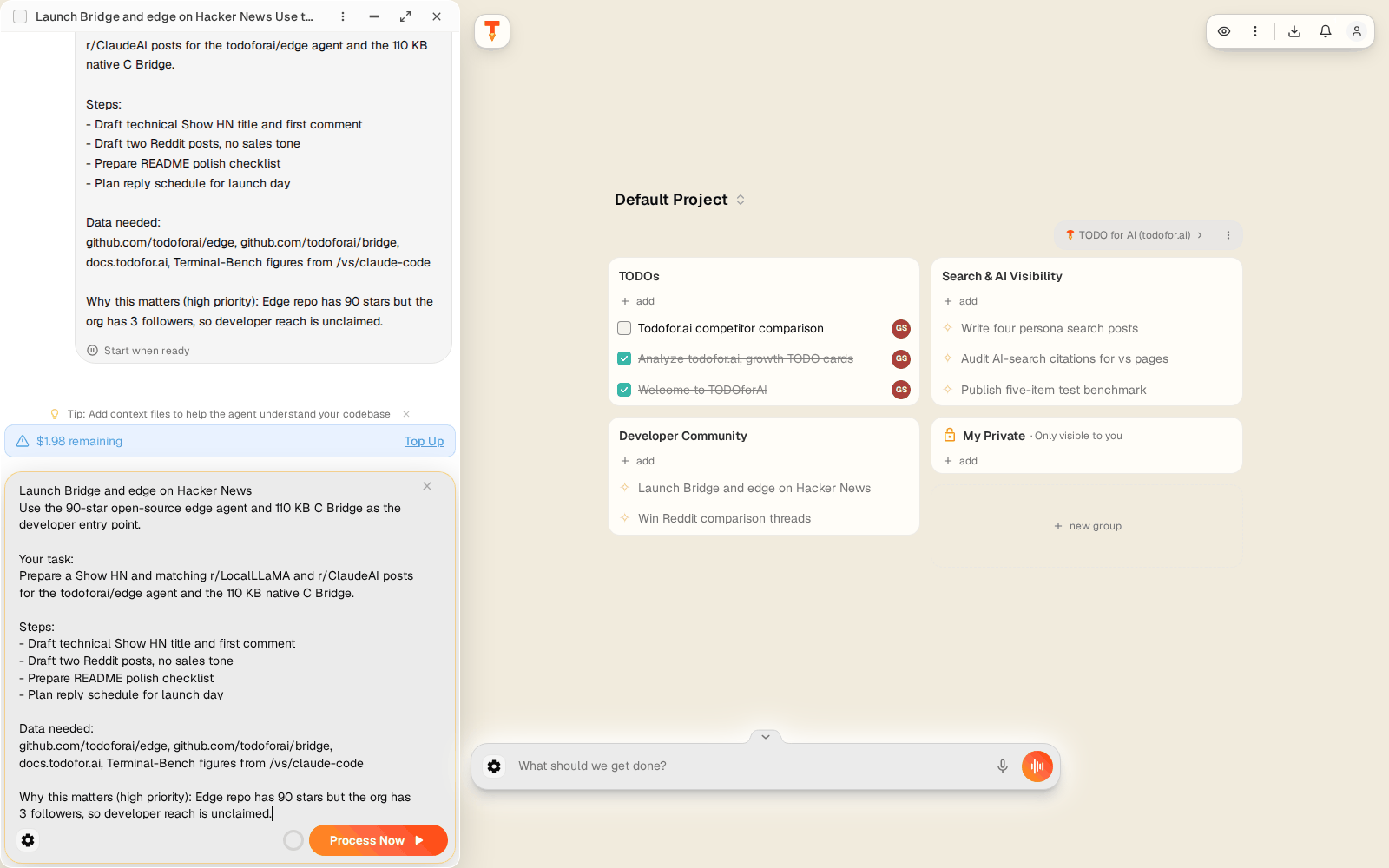
The board opens with TODOs the agent proposes, grouped by workstream. Each card shows why it matters and what data it needs. Start now runs it, Dismiss suggestion removes it, and the agent stops proposing similar work.
3. Write your own TODO
Type into the composer at the bottom of the board, What should we get done?, and press Enter. Or press Alt+N (Ctrl+N on Mac) for a new TODO window.
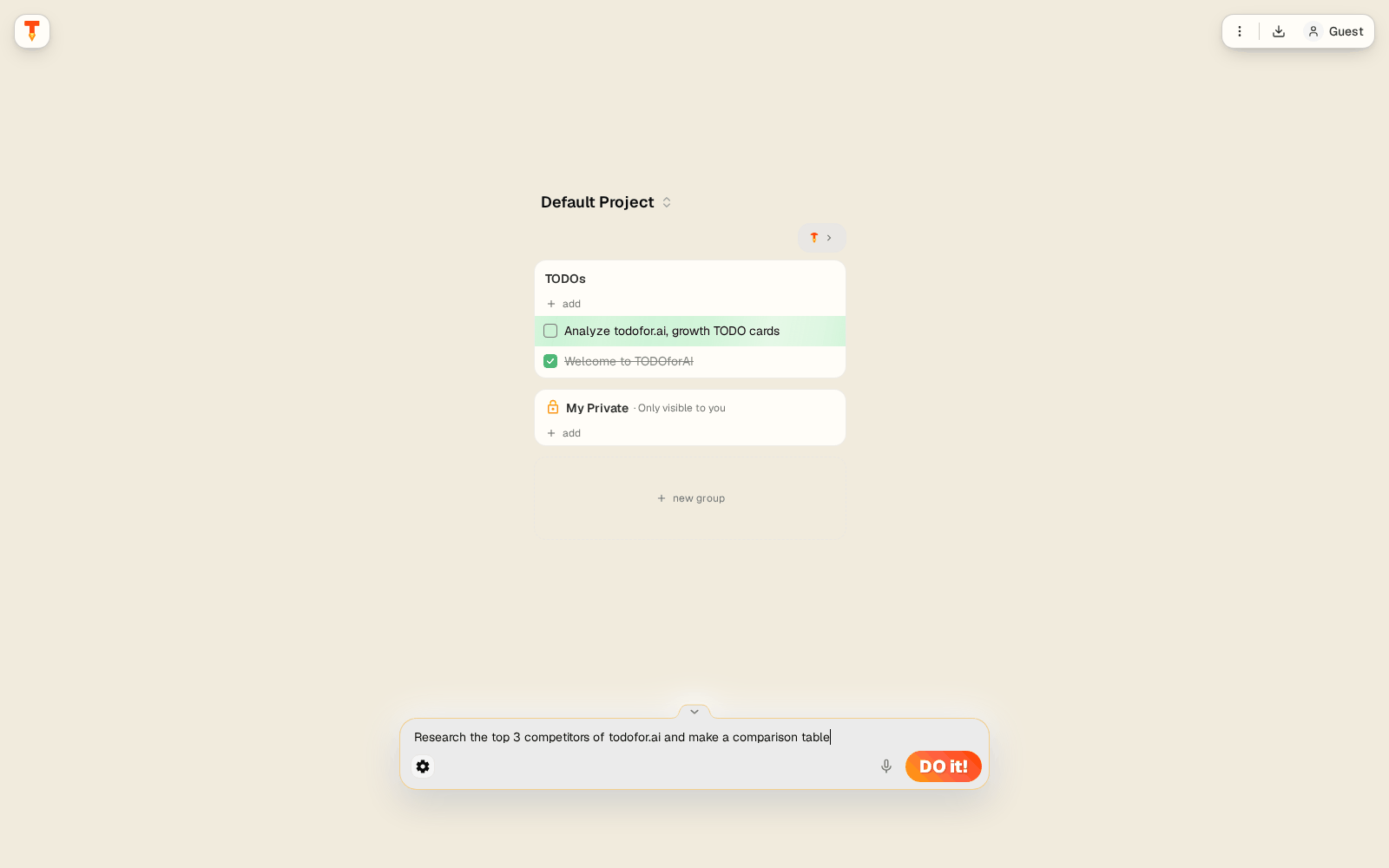
Good TODOs name the outcome and the input:
| Weak | Better |
|---|---|
| Do SEO | Write a 1,200-word page for "invoice automation for agencies" from our pricing page and publish it as a draft |
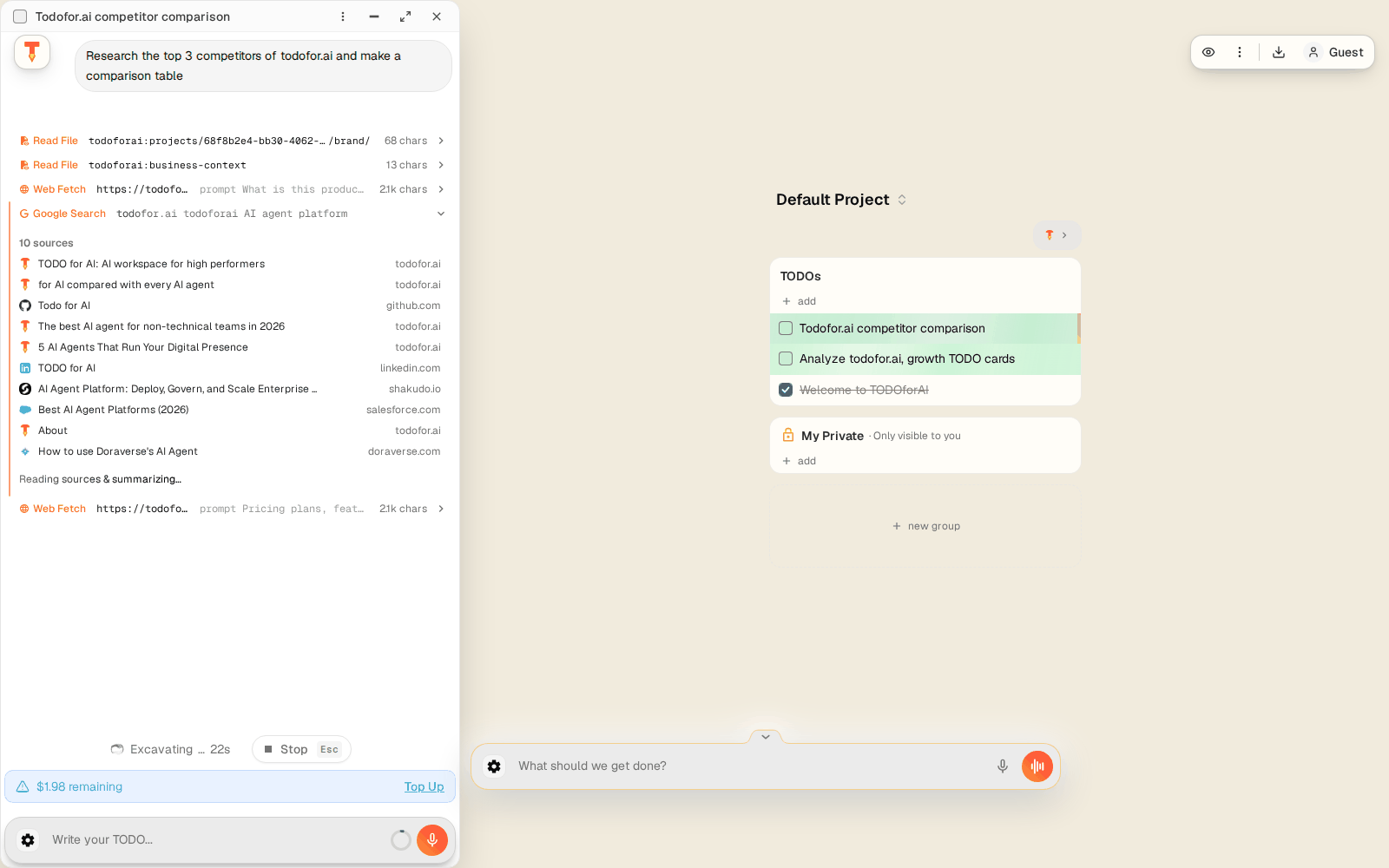
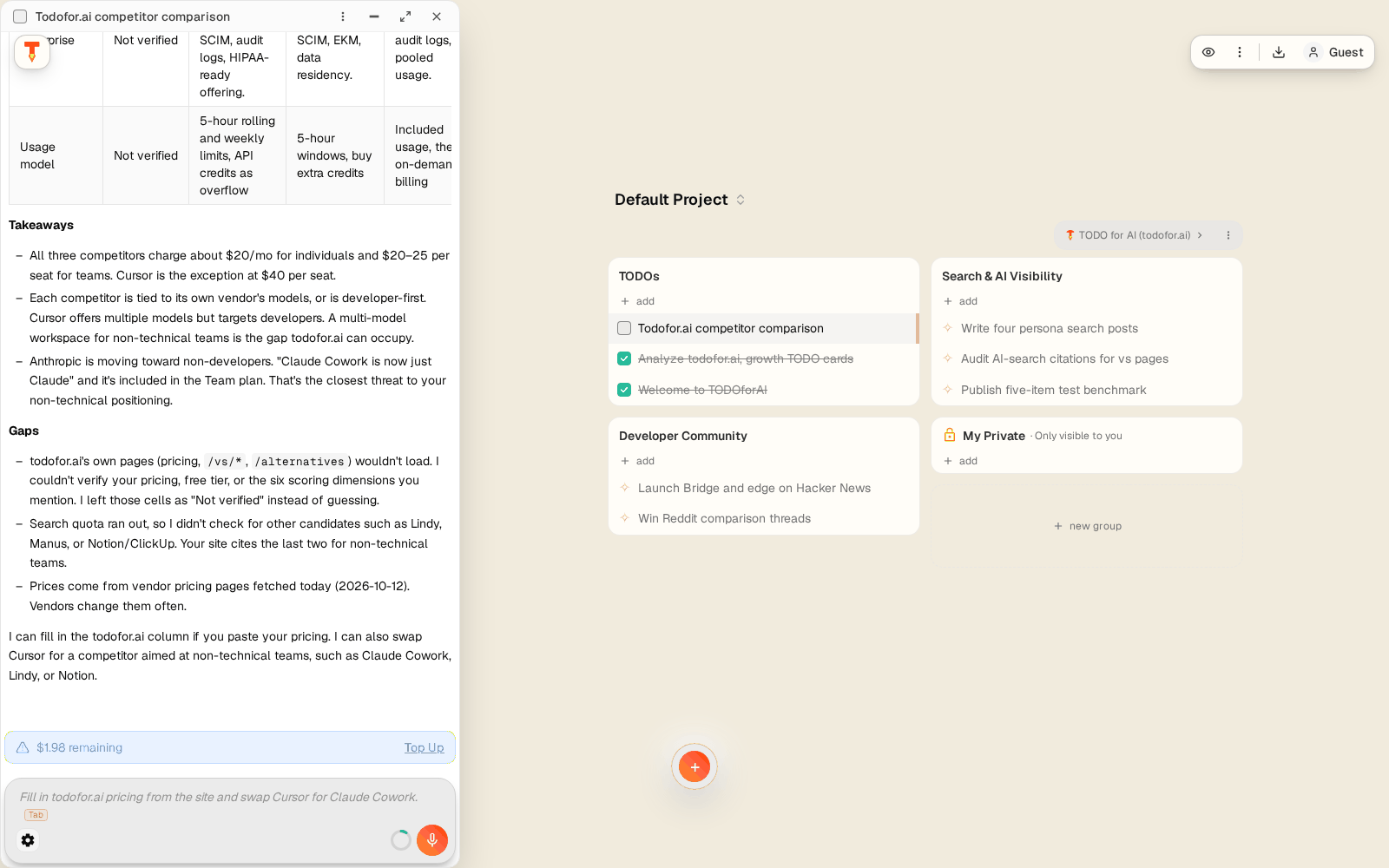
| Check competitors | Compare the top 3 competitors of acme.com in a table: price, free tier, team plan, integrations |
| Answer emails | Draft replies to unread Gmail threads from customers, don't send |
4. Watch it work
The TODO opens as a window. The agent plans, runs commands, browses and writes files. You see every step. When a tool needs permission, the agent asks first (see Permissions).
5. Connect your tools and machines
Agents start in a private cloud VM. To work in your own tools, add them from the board's Resources card:
- Connectors: Gmail, Microsoft 365, Google Drive, Slack, GitHub and 3,000+ more apps through MCP. Connectors →
- Your PC or server: install the Bridge, one ~300 KB binary.
- Your browser: the browser extension lets agents use your logged-in sessions.
6. Invite your team
Open Account → Team & invitations, add emails, and everyone works the same board. Teams & shared workspace →
Next
- App windows: what each window and panel does
- Machines & connectors
- Security & GDPR